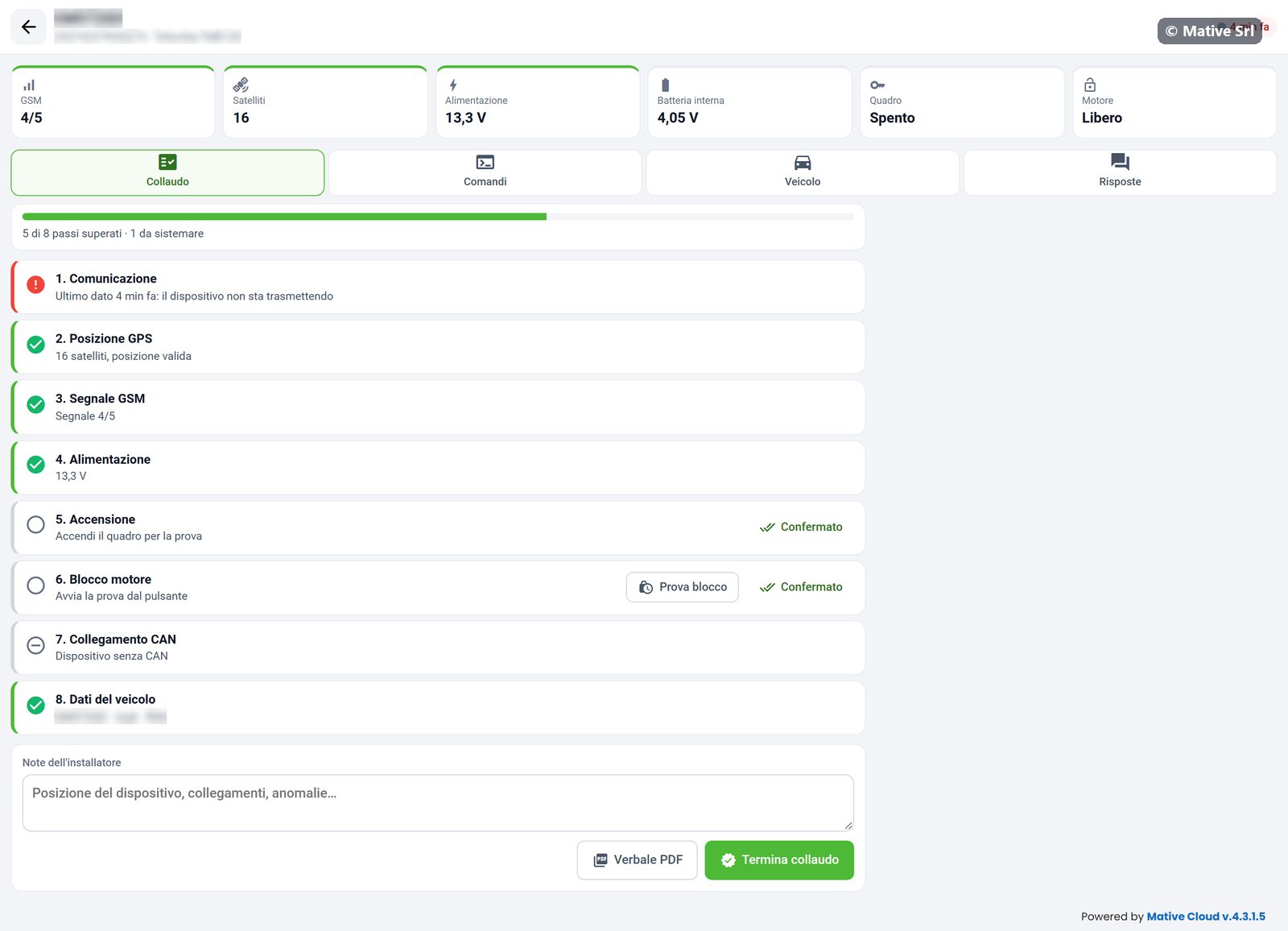
Guided test
The device page starts with the header (plate, IMEI, model and time of the last data) and the live data, which update by themselves. Under them are the tabs Collaudo (test), Comandi (commands), Veicolo (vehicle) and Risposte (responses).
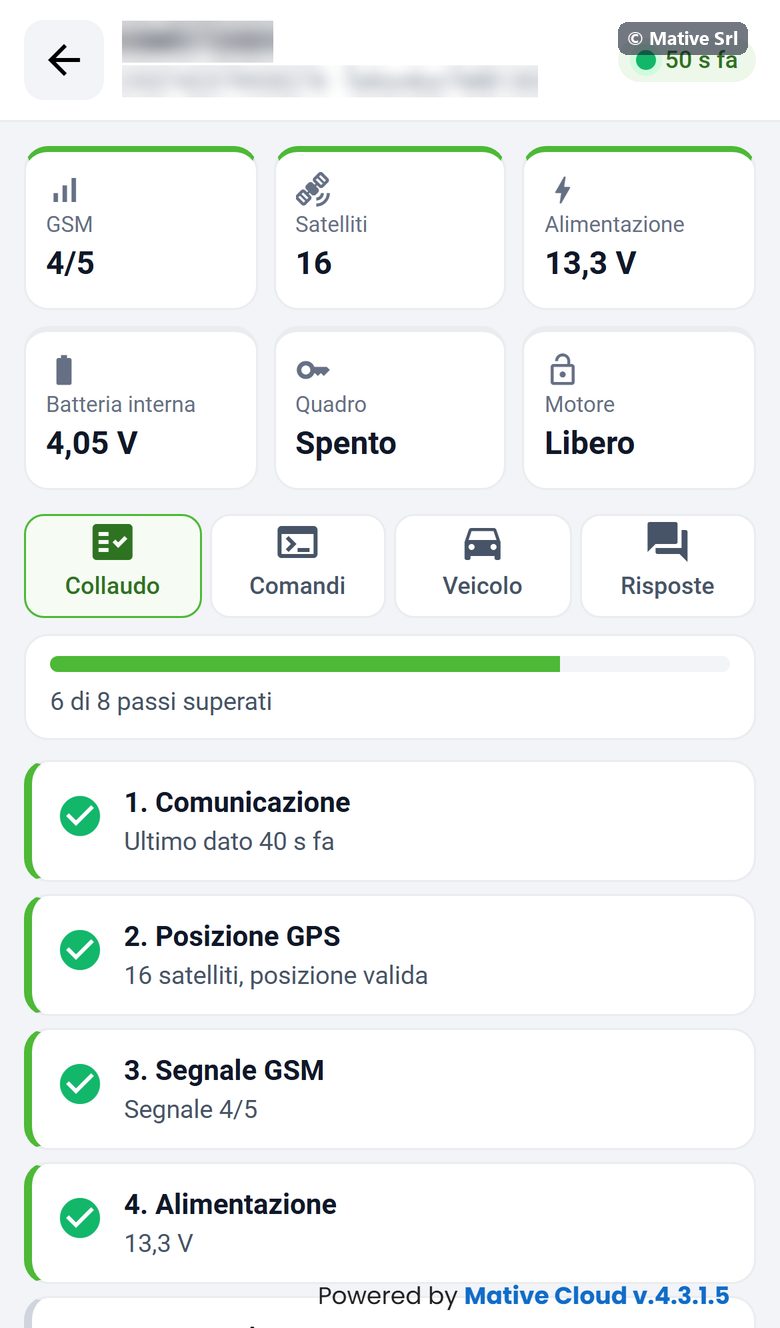
Live data
| Box | Meaning |
|---|---|
| GSM | Mobile signal, from 0 to 5 |
| Satelliti | GPS satellites in view |
| Alimentazione | Voltage of the vehicle supply |
| Batteria interna | Voltage of the device's internal battery |
| Quadro | Ignition Acceso (on) or Spento (off) |
| Motore | Engine Libero (free) or Bloccato (locked) |
The boxes are green when the value is within the pass criteria.
The 8 steps
The Collaudo tab shows the progress (for example "6 di 8 passi superati", 6 of 8 steps passed) and the steps. Each step has one of four states: passed (green), to do (empty circle), to fix (red) or not applicable (grey).
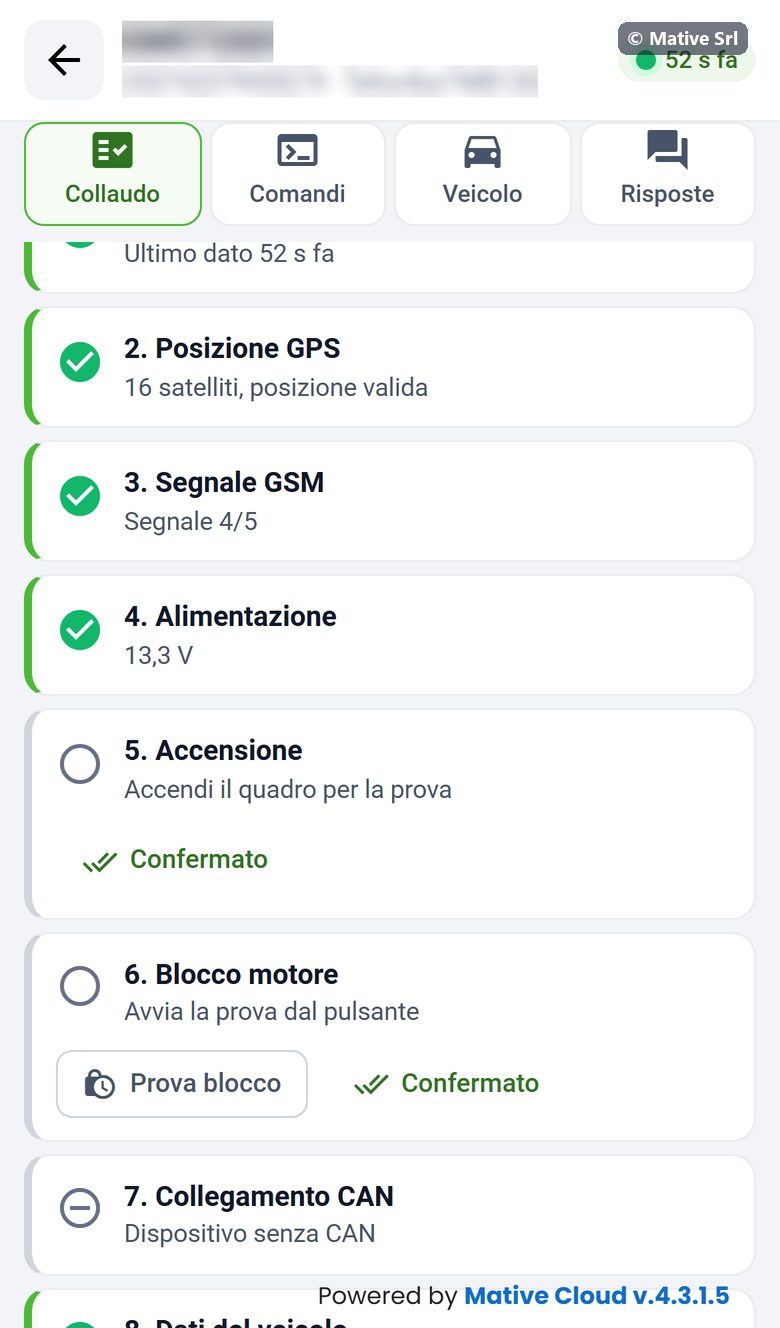
| Step | Passed when |
|---|---|
| 1. Comunicazione | The last data arrived less than 2 minutes ago |
| 2. Posizione GPS | At least 4 satellites and a valid position |
| 3. Segnale GSM | Signal of at least 3/5 |
| 4. Alimentazione | Supply between 11.5 and 32 V |
| 5. Accensione | An ignition cycle (on and off) is detected during the test |
| 6. Blocco motore | Prova blocco (lock test): lock → response → unlock → response |
| 7. Collegamento CAN | Only for devices connected through the CAN bus: check of the CAN connection. On other devices the step is Non applicabile (not applicable). |
| 8. Dati del veicolo | The vehicle data are filled in, in the Veicolo tab |
Steps 1–4 are checked automatically. For step 5 switch the ignition on and off; for step 6 press Prova blocco: the device receives the lock and unlock commands and the step waits for both answers.
Confermato
For Accensione, Blocco motore and Collegamento CAN there is also the Confermato (confirmed) button. Use it when you have checked the ignition, the lock or the CAN connection by sight, but the automatic data do not arrive.
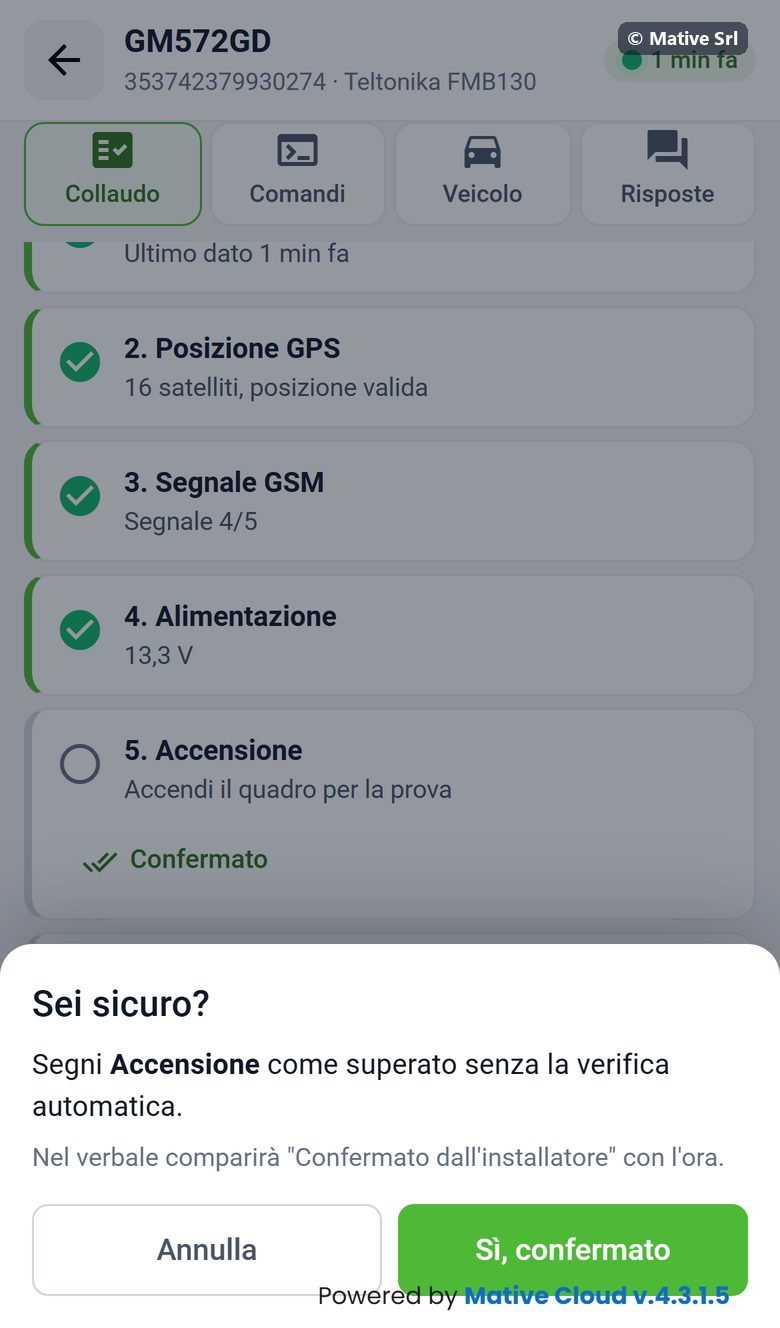
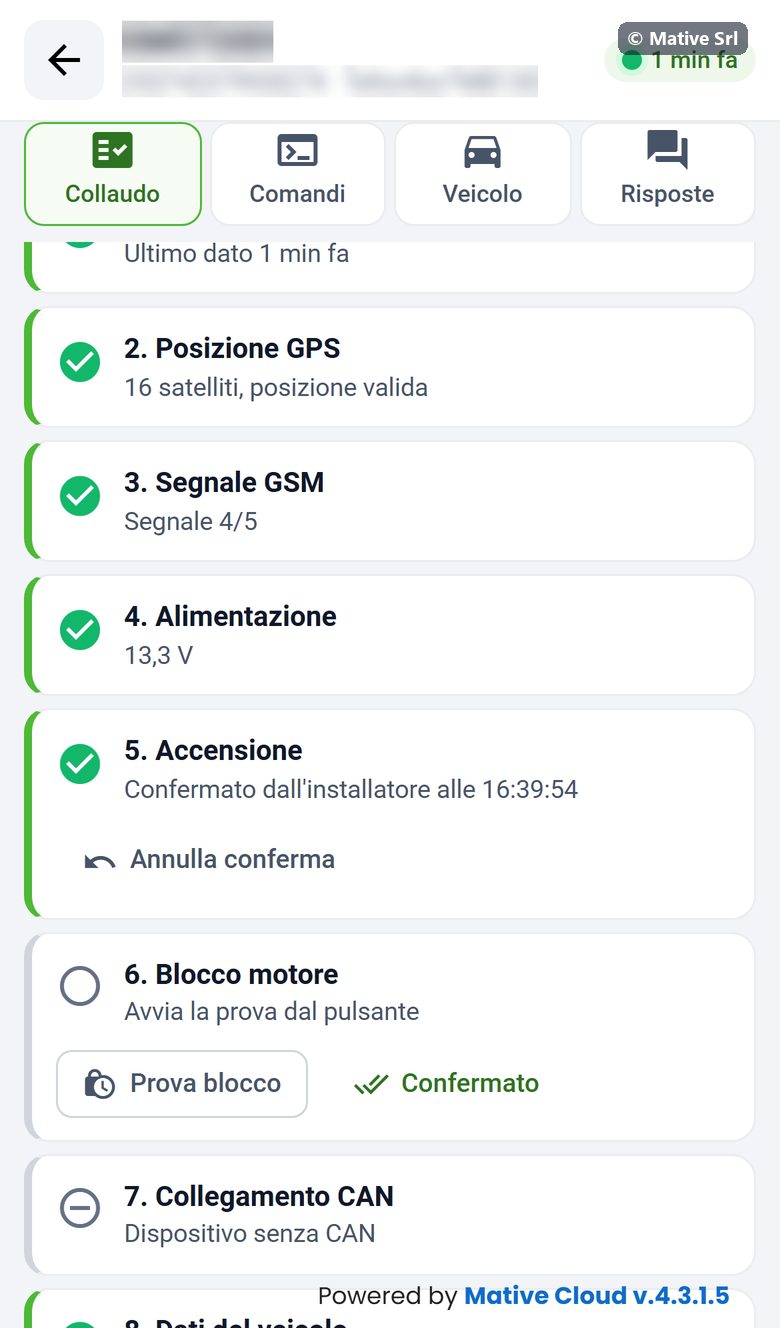
- Press Confermato on the step.
- The Sei sicuro? (are you sure?) window explains that the step will be marked as passed without the automatic check.
- Confirm with Sì, confermato.
The step becomes passed with Confermato dall'installatore alle HH:MM (confirmed by the installer at …). The same wording appears in the test report. Annulla conferma (undo confirmation) brings the step back to its automatic state.
Notes, report and finish
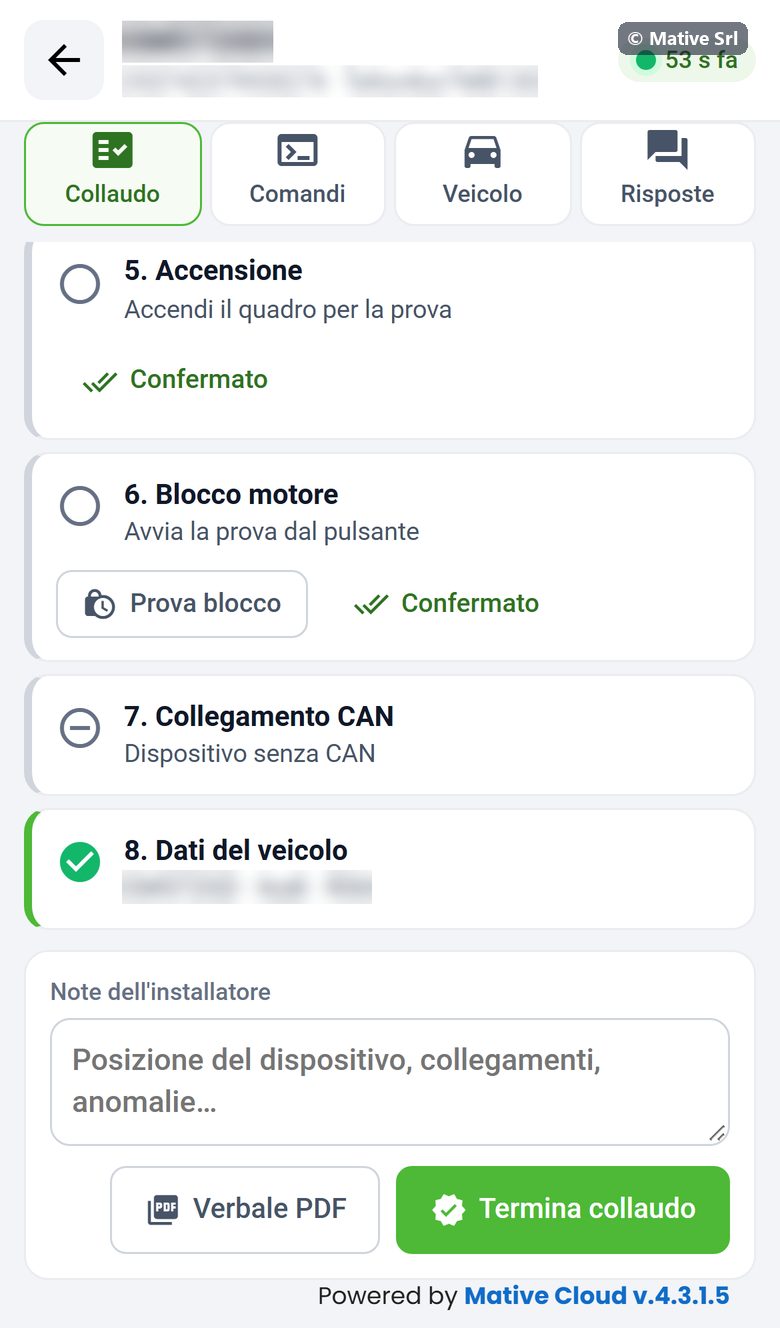
At the bottom of the tab:
- Note dell'installatore (installer notes): position of the device, connections, anomalies;
- Verbale PDF: downloads the test report;
- Termina collaudo (finish test): saves the result.
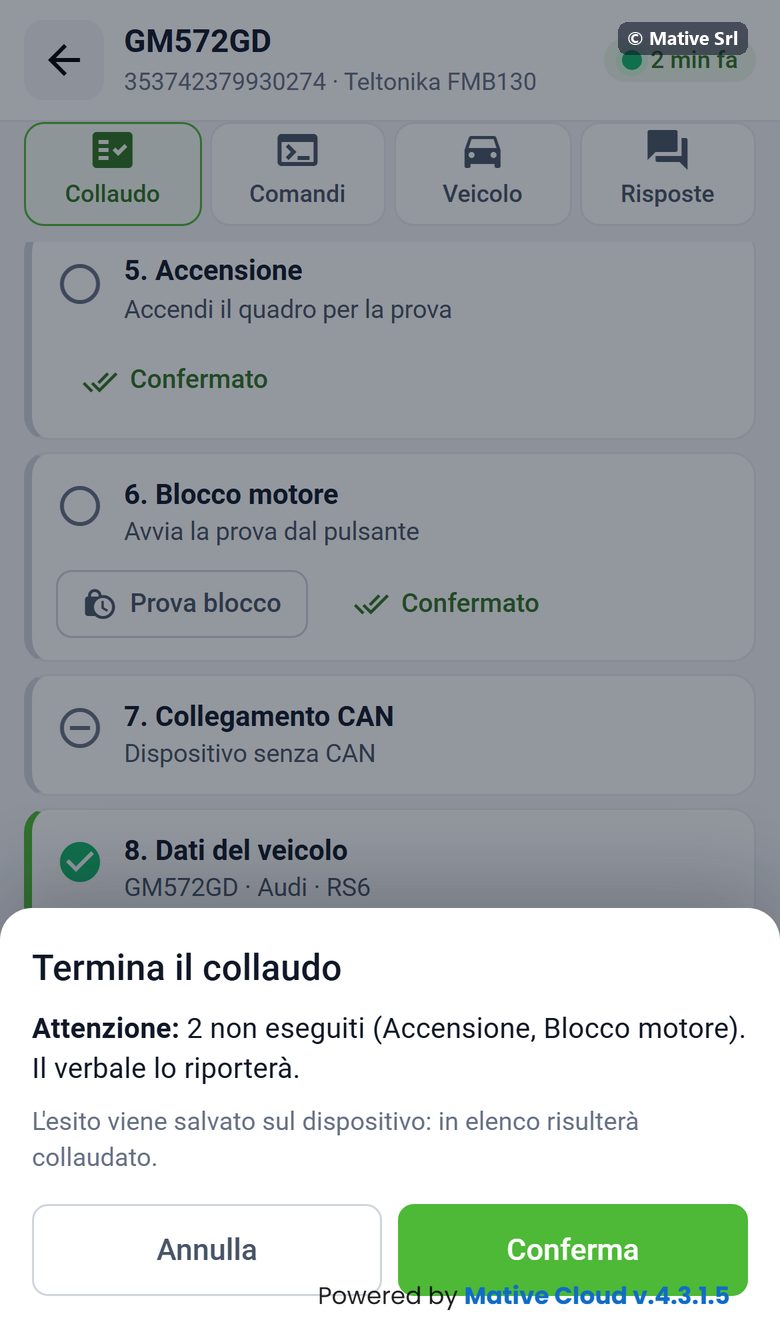
Termina collaudo asks for confirmation. If some steps are not passed, the window lists them (for example "2 non eseguiti: Accensione, Blocco motore") and says that the report will show them. After Conferma, the result is saved on the device and it appears as Collaudato in the list.
Test report
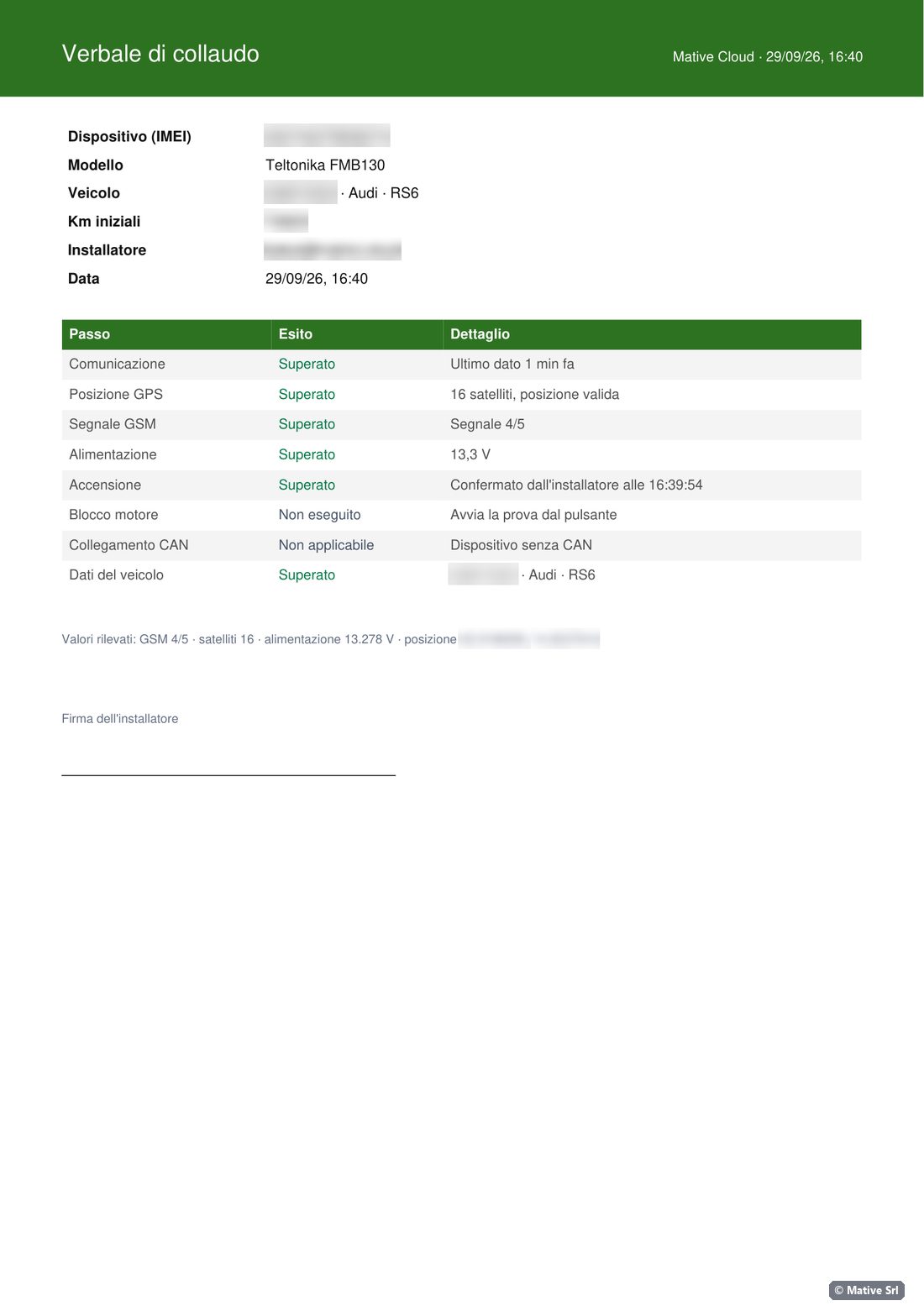
The Verbale di collaudo (test report) is a PDF with:
- device (IMEI) and model, vehicle and initial km, installer and date;
- the outcome of each step with its detail, including "Confermato dall'installatore" for confirmed steps;
- the commands sent with their outcome and the notes;
- the values measured: GSM, satellites, supply, position;
- the space for the installer's signature.
The PDF is created on your device and is not kept on the server.
Vehicle
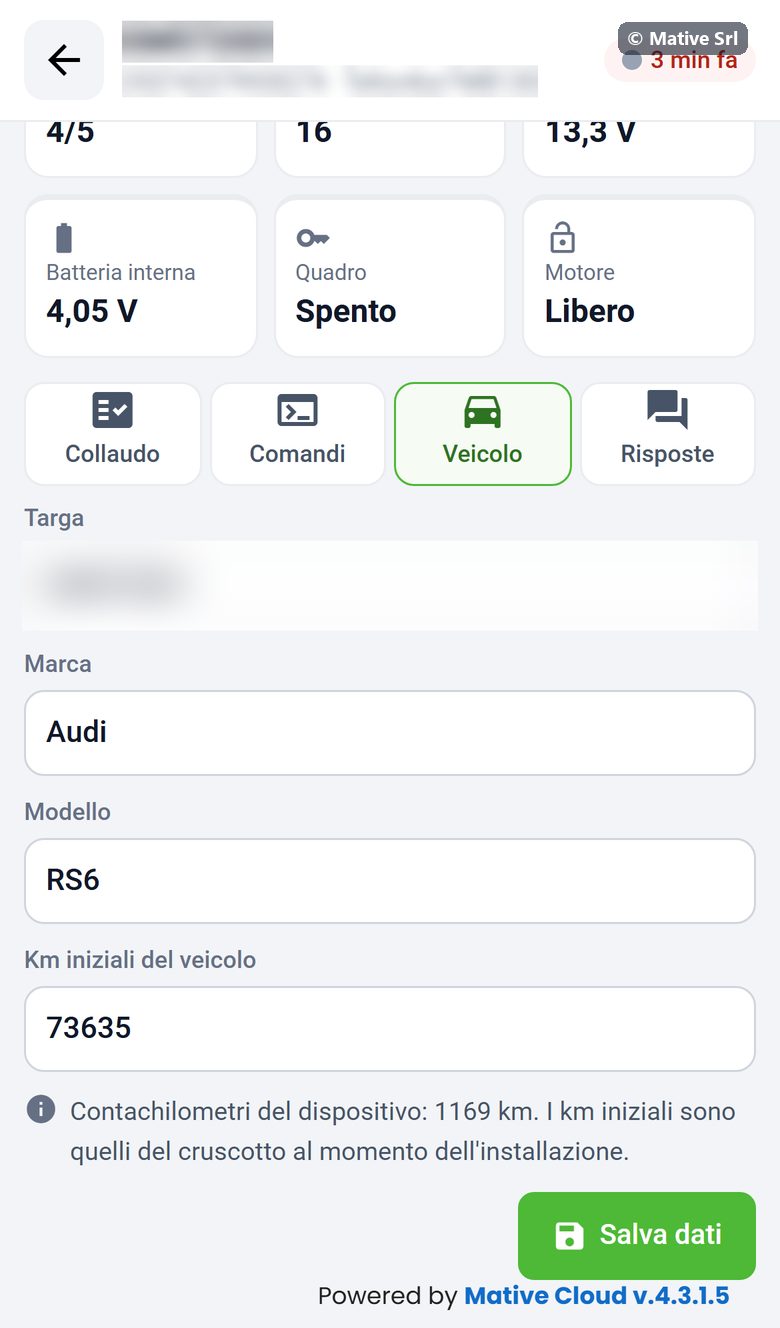
The Veicolo tab contains Targa (plate), Marca (brand), Modello (model) and Km iniziali del veicolo (initial km of the vehicle). Enter the km shown on the dashboard at the time of installation; the page also shows the km counted by the device. Salva dati (save data) saves them.
On a computer
On a wide screen the same page shows the live data in one row and the steps below.